Troubleshooting Stream Stability
If you are experiencing constant buffering, micro-stutters, or streams failing to start, the issue usually falls into one of three categories: Network Routing, Provider Capacity, or Stream Data Integrity.
Headendarr includes a built-in Stream Diagnostics tool that automates the testing process, providing real-time data on playback speed, bitrate, and network routing without requiring manual terminal commands.
1. Using Stream Diagnostics
The diagnostic tool can be accessed directly from any channel's settings. It runs a 20-second sampling of the stream to determine its health.
How to Start a Test
- Navigate to the Channels page.
- Open the Channel Info/Settings dialog for the problematic channel.
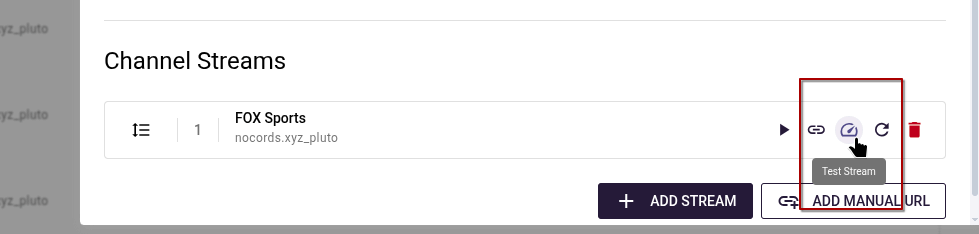
- Click the Test Stream button in the header actions.
Understanding the Results
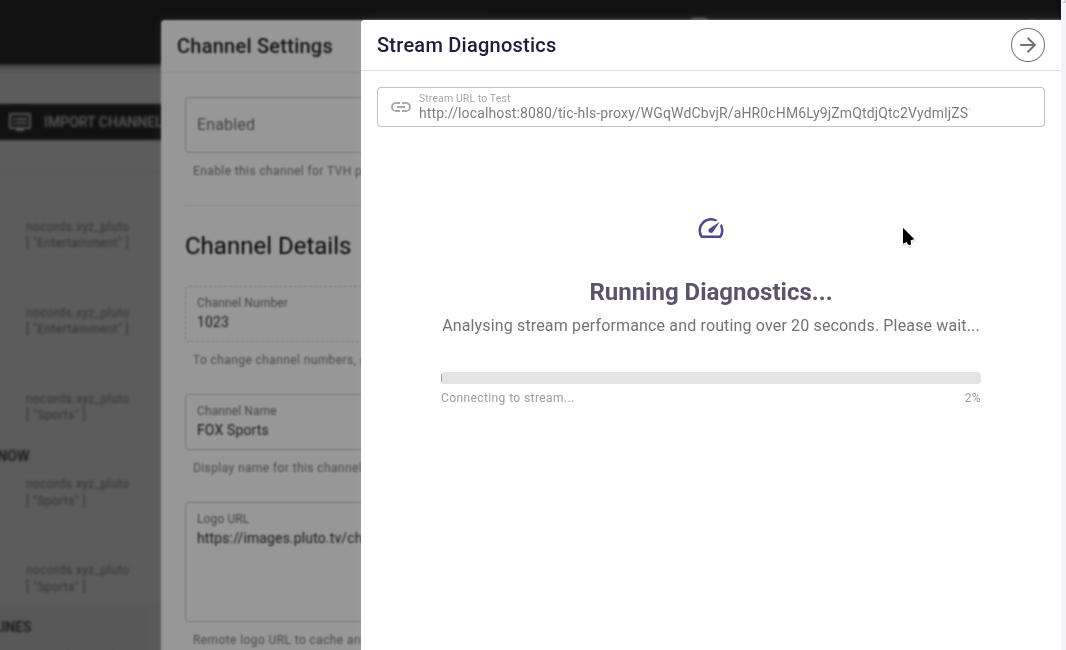
When the test runs, Headendarr performs several checks:
- Hostname Resolution: Verifies that your server can find the provider's IP.
- Geolocation: Identifies where the stream is physically originating from.
- Performance Sample: Downloads 20 seconds of stream data to calculate bitrate and speed.
What to look for:
- Average Speed: This is the most critical metric.
1.0x: The data is arriving exactly at the speed required for real-time playback.> 1.0x: The connection is fast and stable.< 1.0x: (e.g.,0.58x) This is the cause of buffering. The data is arriving too slowly to play.
- Bitrate: Shows the bandwidth usage. If this is very low for a high-resolution stream, the source is likely heavily throttled or compressed.
- Bypass HLS Proxies: If your channel is configured to use an HLS proxy, use this toggle to test the original source directly. This helps determine if the bottleneck is your local proxy or the IPTV provider itself.
2. Interpreting the Network Route
Distance matters. A stream originating from a different continent will have higher latency and more potential "bottlenecks" along the network path.
- Local/Regional: If the stream is in your own country or a nearby region, buffering is likely due to ISP throttling or local network congestion.
- International: If the stream is originating from a different continent, the physical distance and number of international "hops" are likely causing the instability.
3. Case Study: Bypassing ISP Throttling
The following example demonstrates how a VPN can resolve buffering issues caused by poor routing or traffic shaping by an ISP:
-
Direct Connection (No VPN):
- Result:
speed=0.58x - Symptom: Constant buffering every few seconds.
- Cause: The data is arriving significantly slower than real-time playback requirements. This is often due to poor peering between your ISP and the stream provider, or intentional ISP-level traffic shaping.
- Result:
-
Connected to a VPN:
- Result:
speed=2.25x - Symptom: Perfect, smooth playback.
- Why it worked: The VPN tunnel encapsulates your traffic, preventing the ISP from identifying it as a media stream and applying throttles. Furthermore, the VPN provider may have superior network routing to the destination compared to your home ISP.
- Result:
4. Possible Fixes
A. Use a VPN
A VPN is often the most effective solution for two common issues:
- ISP Throttling: Encrypting your traffic prevents your ISP from identifying and slowing down specific types of traffic like IPTV streams.
- Network Peering: VPN providers often maintain high-capacity data centre connections with better global routing than consumer-grade ISPs.
- Tip: Try connecting to a VPN server located in the same country as the stream source, or a major regional network hub.
B. Use an External HLS Proxy via VPN
If your main Headendarr server cannot be put behind a global VPN, you can run a small External HLS Proxy container that is routed through a VPN. Headendarr can then "chain" requests through this proxy.
See the full guide: External HLS Proxy via VPN
C. Adjust HLS Proxy Settings
If the stream speed is borderline or the data is "messy" (causing sync issues even at 1.0x), you can adjust the HLS Proxy settings for the entire source.
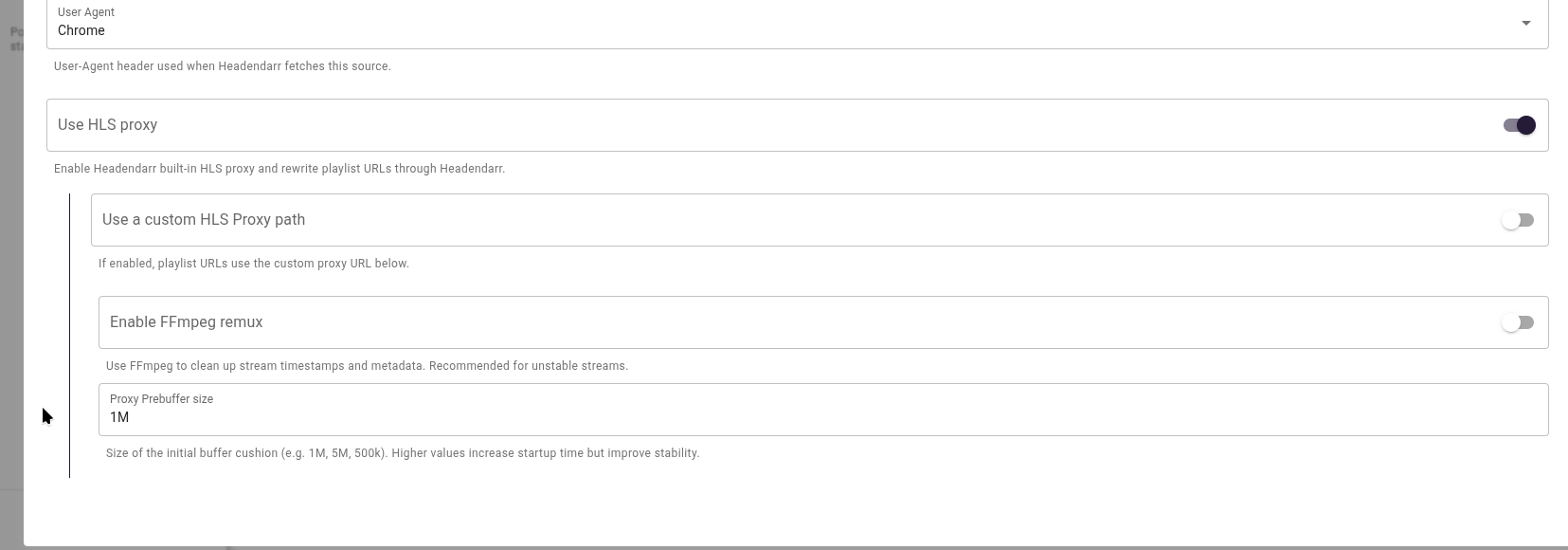
Navigate to Sources, edit the problematic source, and ensure Use HLS proxy is enabled. You can then configure:
- Enable FFmpeg remux: Use this if the source data has timestamp or metadata issues. It tells Headendarr to "clean up" the stream before sending it to your player.
- Proxy Prebuffer size: Increase this (e.g. to
5Mor10M) if your network is jittery. This creates a larger "shock absorber" to prevent buffering during temporary speed drops.
When there is no fix
If ffmpeg consistently reports speed < 1.0x even when using a high-quality VPN and a direct connection, the problem is at the Provider's End. The server you are connecting to is likely overloaded or lacks the bandwidth to serve the number of active users. In this scenario, no amount of local configuration can fix the buffering.