Unraid Installation
Installing Headendarr on Unraid is straightforward using the Community Applications plugin.
This guide assumes you have the Community Applications plugin installed on your Unraid server.
Installing from Community Applications
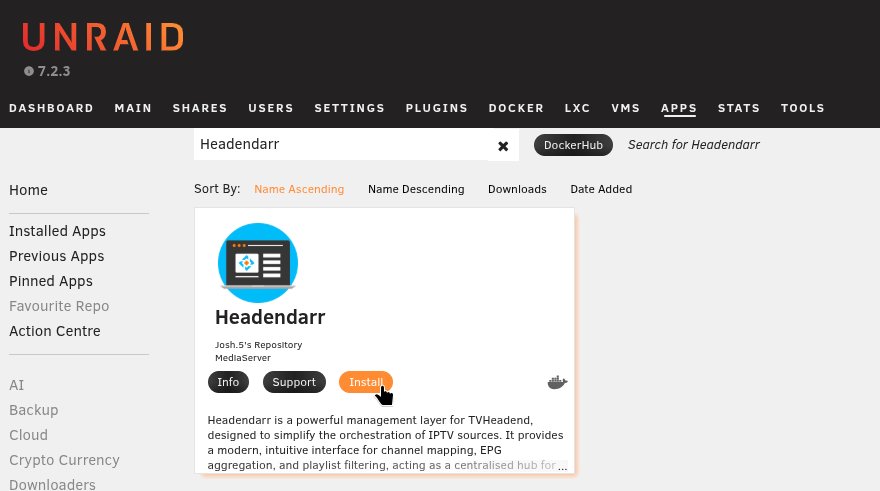
- Navigate to the Apps tab in your Unraid web interface.
- In the search box, type
Headendarrand press Enter. - Locate the official
headendarrapplication in the search results and click the Install button.
Template Configuration
Unraid will present the Docker container template. Adjust the paths and ports to your environment before applying.
| Parameter | Description |
|---|---|
| Repository | ghcr.io/headendarr/headendarr:latest (stable) or ghcr.io/headendarr/headendarr:staging (pre-release) |
| Network Type | bridge (recommended default) |
| Port: 9985 (TCP) | Headendarr Web UI |
| Port: 9981 (TCP) | TVHeadend Web UI |
| Port: 9982 (TCP) | TVHeadend HTSP |
| Path: /config | Required app data path (for example /mnt/user/appdata/headendarr) |
Advanced Template Options
In the Unraid template form, enable Show more settings... to reveal advanced options.
Advanced options include:
- Path:
/recordings: Set this to a location on your array (for example/mnt/user/media/dvr). - Path:
/timeshift: Set this to fast temporary storage such as your cache pool or memory-backed storage (for example/dev/shm). Headendarr uses this for timeshift data and temporary VOD caching, including VOD 24/7 channel cache warm and handoff. - Path:
/tmp/cache: (Recommended) Set this to memory-backed storage (for example/dev/shm/headendarr). This is a temporary storage area used by the Channel Stream Orchestrator (CSO) for local segmented ingest and output handoff. Using RAM-based storage here significantly improves performance and avoids unnecessary disk wear. It requires approximately 50MB of space per concurrent VOD stream. - Variables:
TZ,PUID,PGID.
You can keep defaults for a first install, but most users should customise /recordings and /timeshift.
After configuring values, click Apply to start the container.
:::info Image Tag Selection
Use ghcr.io/headendarr/headendarr:latest for stable builds.
Use ghcr.io/headendarr/headendarr:staging if you want pre-release builds for early testing.
:::
Accessing the Application
Once the container is running, you can access the Headendarr Web UI by clicking the container's icon and selecting WebUI. The URL will be http://<your-unraid-ip>:9985.
Initial login credentials are:
- Username:
admin - Password:
admin
:::warning Direct TVHeadend Access
It is not recommended to expose the TVHeadend Web UI (9981) or HTSP port (9982) directly to the internet. These services are best accessed within your local network, or securely remotely via a VPN like Tailscale.
:::